Your ComfyUI, one clean studio
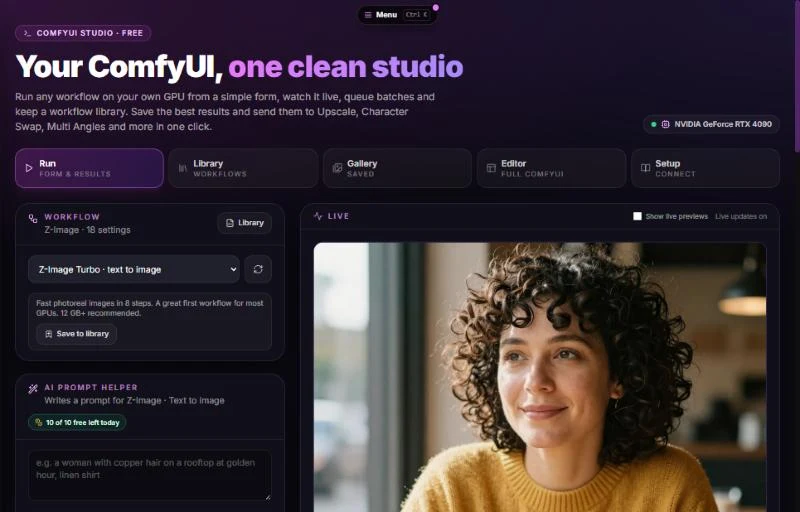
ComfyUI Studio is a free web interface for the ComfyUI you already run, on your own GPU, RunPod, RunComfy or any server. Your browser talks to ComfyUI directly: open a workflow and get a simple form instead of the node graph, watch the generation live, queue batches, keep a workflow library, and send the best results to the rest of AI Influencer Studio in one click.
No card needed · plans from $9.99/month · cancel anytime
Free
Generations run on your ComfyUI, so they cost no credits
10 a day
Free AI-written prompts, then 1 credit each
4 starters
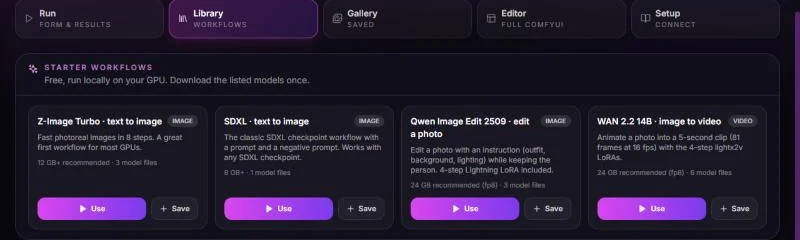
Z-Image Turbo, SDXL, Qwen Image Edit and WAN 2.2 workflows
What you get
A form instead of the node graph
Open any workflow and the studio finds what matters: prompt, size, seed, steps, CFG, sampler and models. Pin or rename the fields you use, and keep every other input one click away under Advanced.
Your browser talks to ComfyUI
The page connects straight to your ComfyUI, local or in the cloud. Nothing goes through our servers, so your workflows and generations stay between your browser and your machine.
Live progress and batches
Watch each node run with a progress bar and, if you turn them on, live previews. Cancel at any time, or queue up to 100 runs with new seeds or one prompt per line.
A workflow library
Import a .json in UI or API format, paste it, or pull the workflows saved in your ComfyUI. Subgraphs are supported, and missing custom nodes are named before you run.
AI prompt helper
Describe an idea in a few words and get a prompt written for your workflow's model family, from SDXL and Flux to Z-Image, Qwen, WAN and LTX. 10 free prompts a day, then 1 credit each.
Results that keep going
Save results to your gallery and send an image to Upscale, Character Swap, Multi Angles, Edit Studio, Video Studio or a LoRA dataset, without downloading and re-uploading.
How it works
- 01
Start ComfyUI with one flag
Add --enable-cors-header to your ComfyUI launch command so this website may talk to it. The Setup tab shows the exact line for the Windows portable build, a manual install and ComfyUI Desktop.
- 02
Connect
Click Connect: the address is http://127.0.0.1:8188 by default, or type another port, a LAN address or a RunPod or RunComfy URL. Chrome and Edge ask once to allow access to your local network, and the studio reconnects by itself on your next visit.
- 03
Pick a workflow
Start with a free starter, or import your own. Download any model the workflow needs into ComfyUI once; the studio checks what is installed.
- 04
Run and keep the best
Fill the form, run, and watch it live. Save the results you like to your gallery or send them on to another tool.
The ComfyUI you know, without the spaghetti
ComfyUI is the most flexible way to run open models, and its node graph is perfect for building workflows. For running them day to day, a form is faster. ComfyUI Studio reads the workflow, works out which inputs are the prompt, size, seed, sampler and models, and shows them as a clean form with size presets and seed modes.
Nothing is hidden: every input of every node is still under Advanced, and the full ComfyUI editor sits in its own tab, embedded in the page, for when you want to change the graph itself.
Free starters, or bring your own workflows
Four starter workflows are ready to use: Z-Image Turbo text to image, SDXL text to image, Qwen Image Edit 2509 for editing a photo with an instruction, and WAN 2.2 14B image to video. Each one lists the model files it needs and the VRAM we recommend.
Your own workflows come in as a .json file in UI or API format, pasted text, or straight from the workflows saved in your ComfyUI. The converter handles subgraphs, and tells you by name when a custom node is not installed on the connected server.
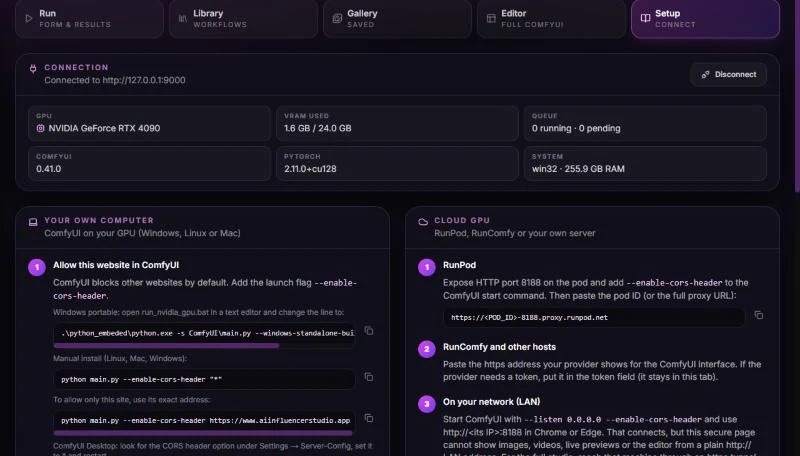
Local GPU, RunPod, RunComfy or your own server
Connect the ComfyUI on your own computer, a machine on your network, or a cloud GPU. The Setup tab shows the connected GPU, VRAM in use, the queue and the ComfyUI version, with a step-by-step guide for each setup.
When something blocks the connection, the studio says why: ComfyUI not running, the CORS flag missing, the browser's local network permission, or a browser that cannot reach local addresses from a secure page. Chrome and Edge work best for a local ComfyUI; Safari cannot reach one from an https page.
From ComfyUI to the rest of the studio
Your results do not have to stop at a download. Save images to your gallery for free (up to 25 MB each), and videos on a paid plan (up to 100 MB each). Send an image to Upscale, Character Swap, Multi Angles, Edit Studio, Video Studio or a LoRA dataset in one click.
If you already train LoRAs in AI Influencer Studio or save them from Civitai, ComfyUI Studio shows which of them are installed in your ComfyUI and where to get the others.
Who it's not for
- You have no ComfyUI and do not want to set one up. The cloud studios of AI Influencer Studio need no install.
- You need ComfyUI on your phone away from home. The studio connects to a ComfyUI your browser can reach, such as one on your computer, network or a cloud GPU.
- You use Safari only and run ComfyUI locally. Safari blocks local addresses from secure pages.
Questions, answered
Is ComfyUI Studio free?
Yes, for every signed-in account, including the free plan. Generations run on your own ComfyUI, so they cost no credits. The only paid parts are the AI prompt helper after 10 free prompts a day (1 credit, $0.01, per prompt) and video saves to the gallery, which need a paid plan.
Do I need my own GPU?
You need a ComfyUI to connect to: on your own computer, on another machine on your network, or rented on a cloud service such as RunPod or RunComfy. If you have no GPU at all, the rest of AI Influencer Studio generates images and videos in the cloud with credits.
Do my workflows and images go through your servers?
Generation does not: your browser sends the workflow to your ComfyUI and reads the results straight from it. Our servers only see what you choose to store: workflows you save to your library, results you save to your gallery, and the idea you type into the prompt helper.
Why does ComfyUI need --enable-cors-header?
By default ComfyUI only accepts requests from its own page. The flag lets another website, here ComfyUI Studio, send it workflows. You can give it this site's exact address instead of * to allow only this site.
Which browsers work?
Chrome and Edge work best and ask once for permission to reach your local network. Firefox can reach a ComfyUI on 127.0.0.1 but blocks plain http addresses on your network. Safari cannot reach a local ComfyUI from a secure page; use Chrome or Edge, or an https address for your ComfyUI.
Can I use custom nodes and my own models?
Yes. The studio runs whatever your ComfyUI has installed. When a workflow needs a node pack or a model your server does not have, it names what is missing before you run.
Can I still edit the graph?
Yes. The Editor tab opens your full ComfyUI inside the page, and there is always a button to open it in a new tab.
More ways to grow your AI influencer
Connect your ComfyUI for free
Every new account gets 100 free credits. No card needed.
Get 100 free credits